Share a 1Password Subscription
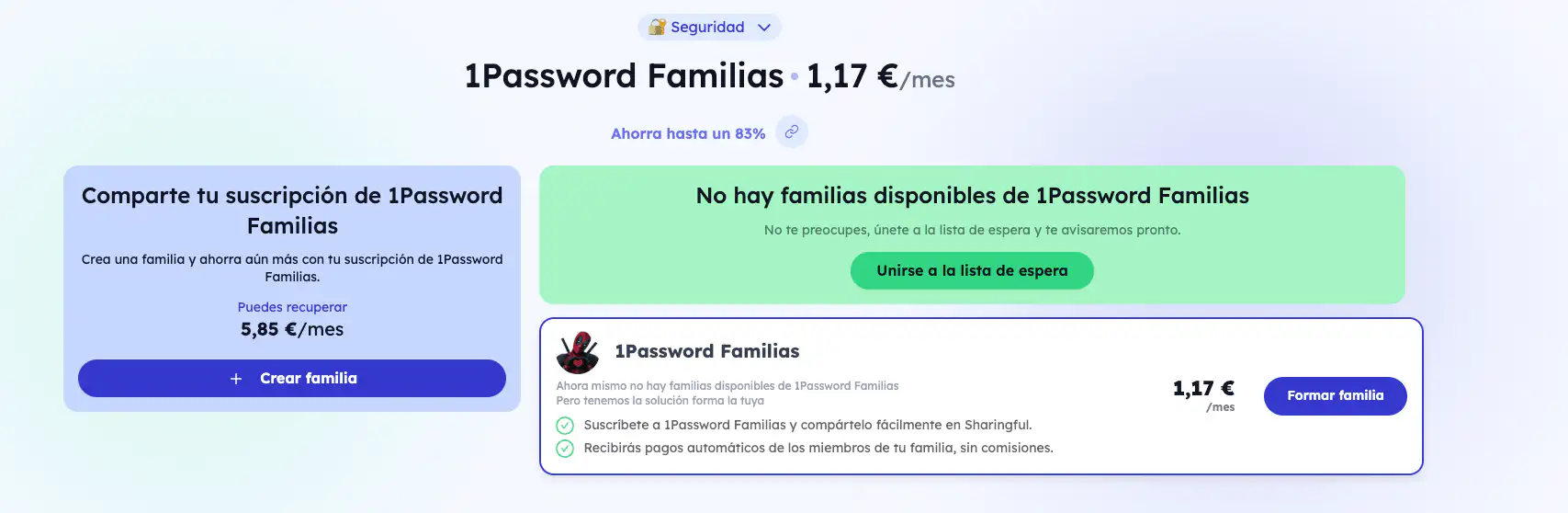
Share 1Password securely using vaults and temporary links. With Sharingful, you can access the Families plan for just €1.17 per month.


Summarize with AI
Sharing passwords via text message or email is a practice many of us continue to do, even though we know it's not exactly the smartest option. The reality is that we manage more and more credentials: from streaming platforms to bank accounts, to collaborative work tools. And when it comes time to share those accesses with family, roommates, or the work team, most resort to the fastest method, not the safest. This is where 1Password makes a real difference.
Sharing 1Password correctly means you can give access to those who need it without exposing your data to interceptions, forgotten screenshots, or WhatsApp conversations that anyone could read. TechRadar considers 1Password a solid option for those who prioritize security, sharing controls, and cross-platform access.
This password manager not only stores your credentials in an encrypted manner but also offers multiple ways to share them depending on the context: from permanent family vaults to temporary links that automatically expire. Flexibility is key because giving your partner permanent access to Netflix is not the same as sending a technician the router password just once.
Fundamentals for Sharing Passwords Securely
Before diving into settings and buttons, it's worth understanding what makes password sharing truly secure. It's not enough for the information to travel encrypted; it also matters who can access it, for how long, and what trace remains of that transfer.
Differences Between Sharing Items and Vaults
1Password offers two different approaches to sharing information. On one hand, you can share individual items: a specific password, a secure note, or credit card details. This option is perfect for specific situations where someone needs access to something concrete without seeing the rest of your information.
On the other hand, shared vaults work like collaborative folders where multiple users have permanent access to a set of items. Think of the difference between lending someone a specific book from your shelf versus giving them a key to your house to enter the library whenever they want.
Items shared via temporary links are ideal for external third parties or one-time situations. Shared vaults work better for stable groups like families or work teams that need continuous access to the same credentials.
Advantages of 1Password Over Traditional Methods
Sending a password by email has an obvious problem: that message remains stored indefinitely in two inboxes, potentially accessible to anyone who compromises those accounts. Text messages are no better; carriers can access them, and many phones sync SMS with the cloud.
1Password solves these problems with end-to-end encryption. 1Password stores shared items on dedicated servers, located in Frankfurt for European users, with encryption that even company employees cannot decrypt. Additionally, every action is logged: you know exactly who accessed what and when.
Granular control is another significant advantage. You can decide if someone can only view a password or also edit it, if access is permanent or temporary, and revoke permissions instantly when the situation changes.
Setting Up 1Password Families
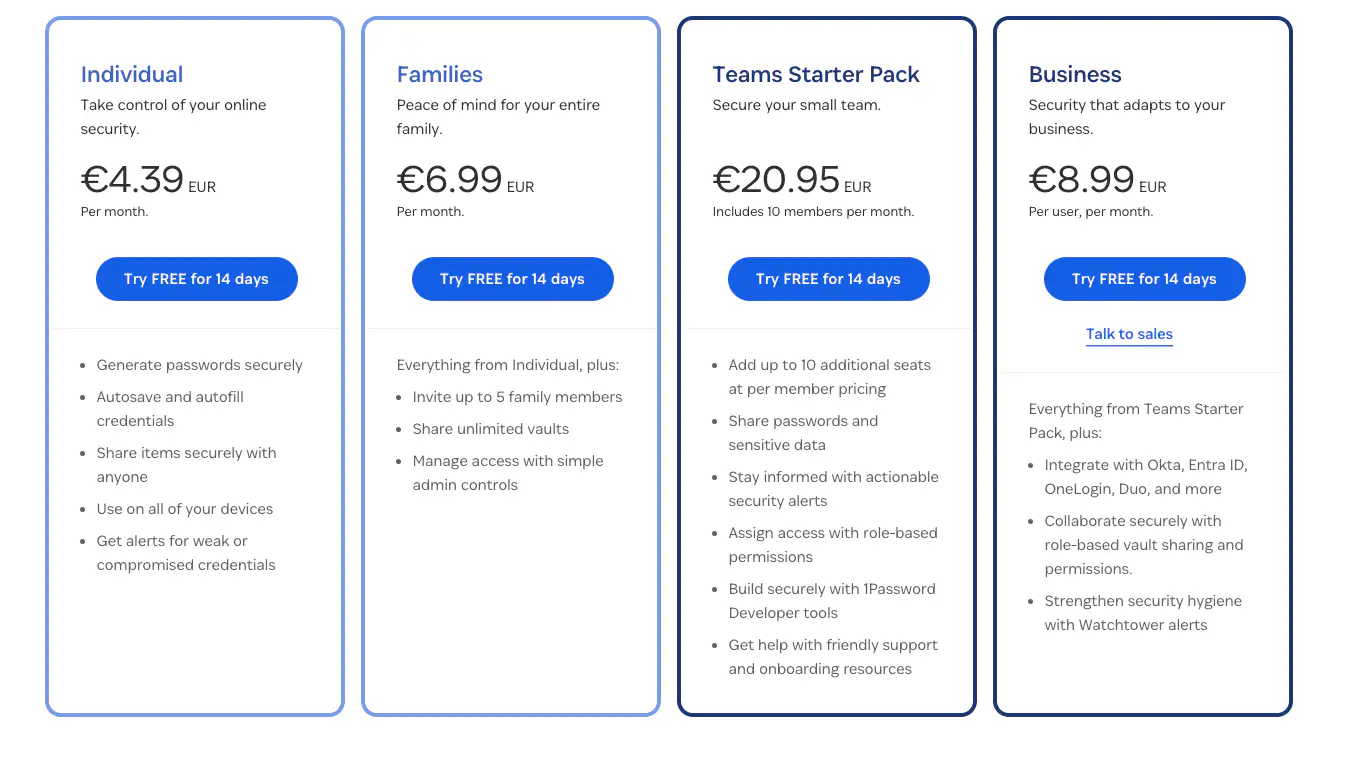
The 1Password family plan is specifically designed for households that want to manage their passwords together without sacrificing individual privacy. The official price is €6.99/month for up to 6 members, but if you don't need to be the account administrator, you can access for much less: through Sharingful, you can join an existing family and pay only €1.17 per month, without technical configurations or complications.
How to Invite New Members to Your Plan
The invitation process is simple but requires the person managing the family account to take the initiative. From the 1Password web app, go to the family settings section and select the option to invite members. You only need the email address of each person.
The invitee will receive an email with instructions to create their account or link an existing one. Once the invitation is accepted, that person will have their own private vault, completely separate from yours, plus access to the shared vaults you decide to create.
An important detail: minors can be part of the family plan, but the management of their accounts falls on the adult administrators. This allows children to learn good digital security habits under supervision.
Managing Permissions and Roles in the Family Group
Not all family members need the same privileges. 1Password allows assigning differentiated roles: administrators can invite or remove members, create vaults, and modify general settings. Standard members only access the vaults they have been included in.
This structure is useful when you want your teenage children to have access to certain shared passwords, like WiFi or streaming services, without giving them the ability to modify critical settings or view financial information.
You can change roles at any time from the administration panel. If a family member becomes independent or simply no longer needs access, removing them from the plan is instant, and all their personal credentials remain intact in their own account.
Using Shared Vaults for Teams and Families
Shared vaults are the heart of collaboration in 1Password. They function as secure spaces where multiple people can access, add, and modify items according to assigned permissions.
Creating and Organizing a Common Vault
To create a shared vault, go to the vaults section in your account and select create new. Give it a descriptive name that indicates its purpose: "Family Streaming," "Household Bills," or "Client Project X" work better than generic names.
Internal organization matters as much as creation. Use tags and categories to make finding items quick. A typical family vault could include sections for entertainment, household services, online shopping, and important documents.
Moving Items Between Private and Shared Vaults
It's common for a password to start as personal and then need to be shared, or vice versa. 1Password allows moving items between vaults with a few clicks, although there are nuances worth knowing.
When you move an item to a shared vault, everyone with access to that vault can see it immediately. Before moving, check who has access to avoid surprises. If you only want to share temporarily, consider using a secure link instead of moving the item.
The reverse process also works: you can retrieve an item from a shared vault to your private vault if you no longer need others to see it. The item's history is maintained, which helps track previous changes.
Sharing via Secure Links (Psst!)
The Psst! feature of 1Password solves a common problem: you need to share a password with someone who doesn't use 1Password and probably never will. The technician who comes to set up the printer, the neighbor who takes care of your cat while you travel, or a one-time project collaborator.
How to Send Passwords to People Without 1Password
Psst! generates a unique link that allows anyone to view the shared item through their browser, without needing to create an account or install anything. The process is simple: select the item you want to share, choose the option to share via link, and copy the generated URL.
The recipient only needs to open that link to view the information. They cannot edit it or automatically copy it to any manager, adding an extra layer of control. Once viewed, the person can note the data wherever they prefer, but the original link maintains its security settings.
This feature is especially valuable for sharing credentials with older people or those unfamiliar with technology. There are no apps to install or accounts to create, just a link that works.
Setting Expiration and Viewing Limits
This is where Psst! shows its true utility. 1Password allows setting expiration dates for shared links, from 1 hour to 30 days. Choose the minimum time necessary for your specific situation.
You can also limit who can access the link. Options include allowing access to anyone with the link, restricting it to specific email addresses, or requiring the recipient to verify their identity. For especially sensitive information, email verification adds significant security.
Once the link expires or reaches its viewing limit, it stops working completely. There is no way to recover or extend it; you would have to generate a new one. This feature ensures that temporarily shared credentials do not remain floating indefinitely in forgotten chat conversations.
Security and Best Practices When Sharing
Sharing passwords securely doesn't end when you set up vaults or send links. Ongoing management is equally important, especially when circumstances change.
Access Audit with Watchtower
Watchtower is the monitoring tool integrated into 1Password that constantly analyzes your credentials for issues. It detects weak, reused, or compromised passwords in known data breaches.
For shared items, Watchtower is especially relevant. If a password you share with your family appears in a breach, all members with access will receive the alert. This allows a coordinated response: changing the password once updates the item for everyone automatically.
Activity reports show who accessed which items and when. This visibility is crucial for detecting unusual access or verifying that the correct people are using the shared credentials. In business environments, these records also help with regulatory compliance.
What to Do When Someone No Longer Needs Access
Situations change constantly. A roommate moves out, an employee leaves the company, or you simply decide that certain information should no longer be shared. Acting quickly is essential.
For shared vaults, removing a member is instant and effective. The person immediately loses access to all items in that vault. However, remember that they may have copied or memorized the passwords while they had access, so changing critical credentials is advisable.
Psst! links can be revoked before their expiration if the situation requires it. Access the shared items history and delete the active link. Any subsequent attempt to access will show an error message.
1Password includes guest accounts in its business plans: 5 in Teams and 20 in Business, with the option to add more at an additional cost. This functionality allows temporary access to external collaborators without consuming full licenses.
Managing shared passwords correctly requires a systematic approach, but the tools offered by 1Password greatly simplify the process. The combination of permanent vaults for stable groups and temporary links for specific situations covers virtually any sharing scenario.
If you want to have 1Password Families for just €1.17 per month, on Sharingful you can join a family and share the cost with others. The official price is €6.99/month, but split among members, it drops to that figure. Safe, legal, and hassle-free.